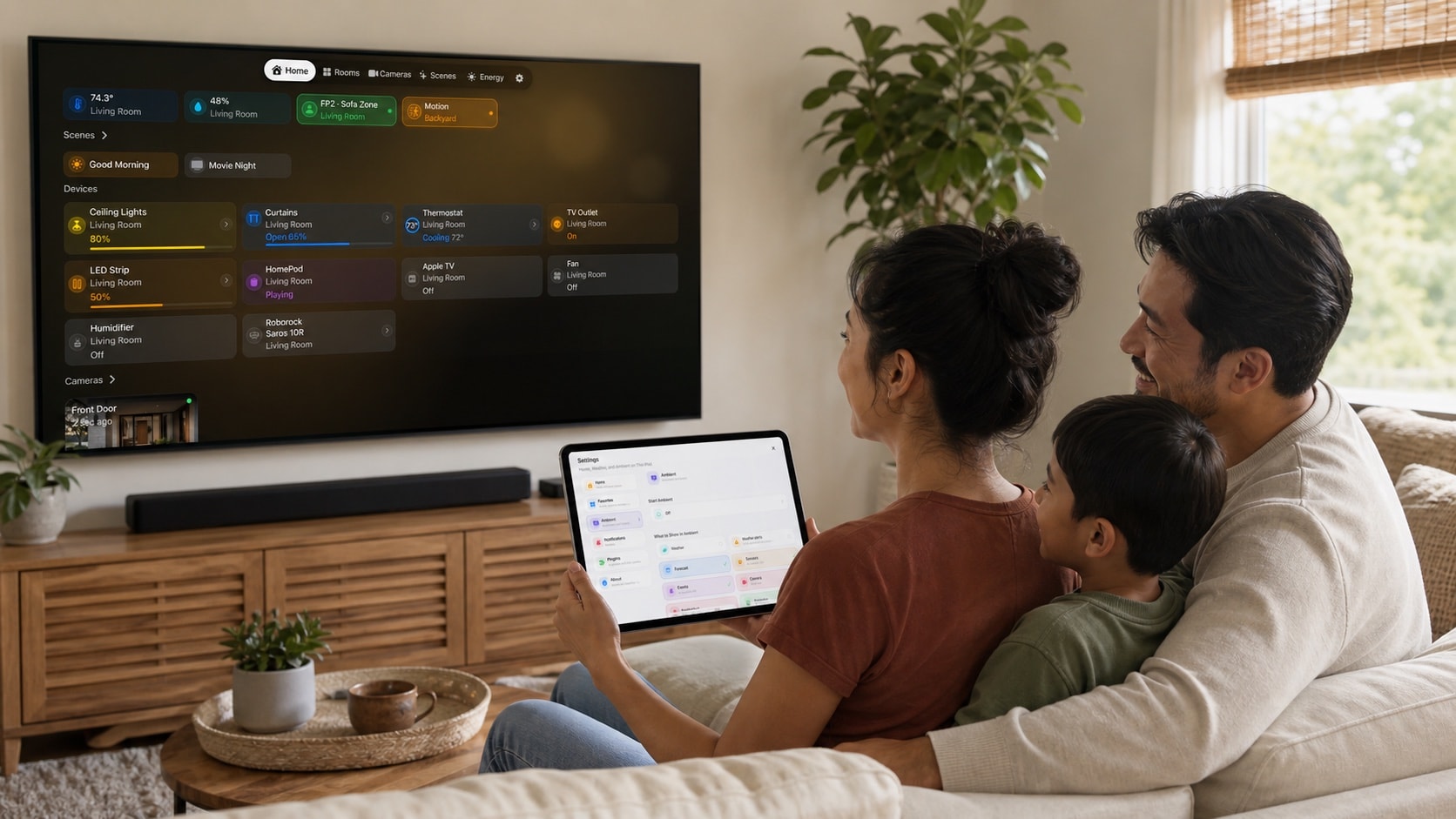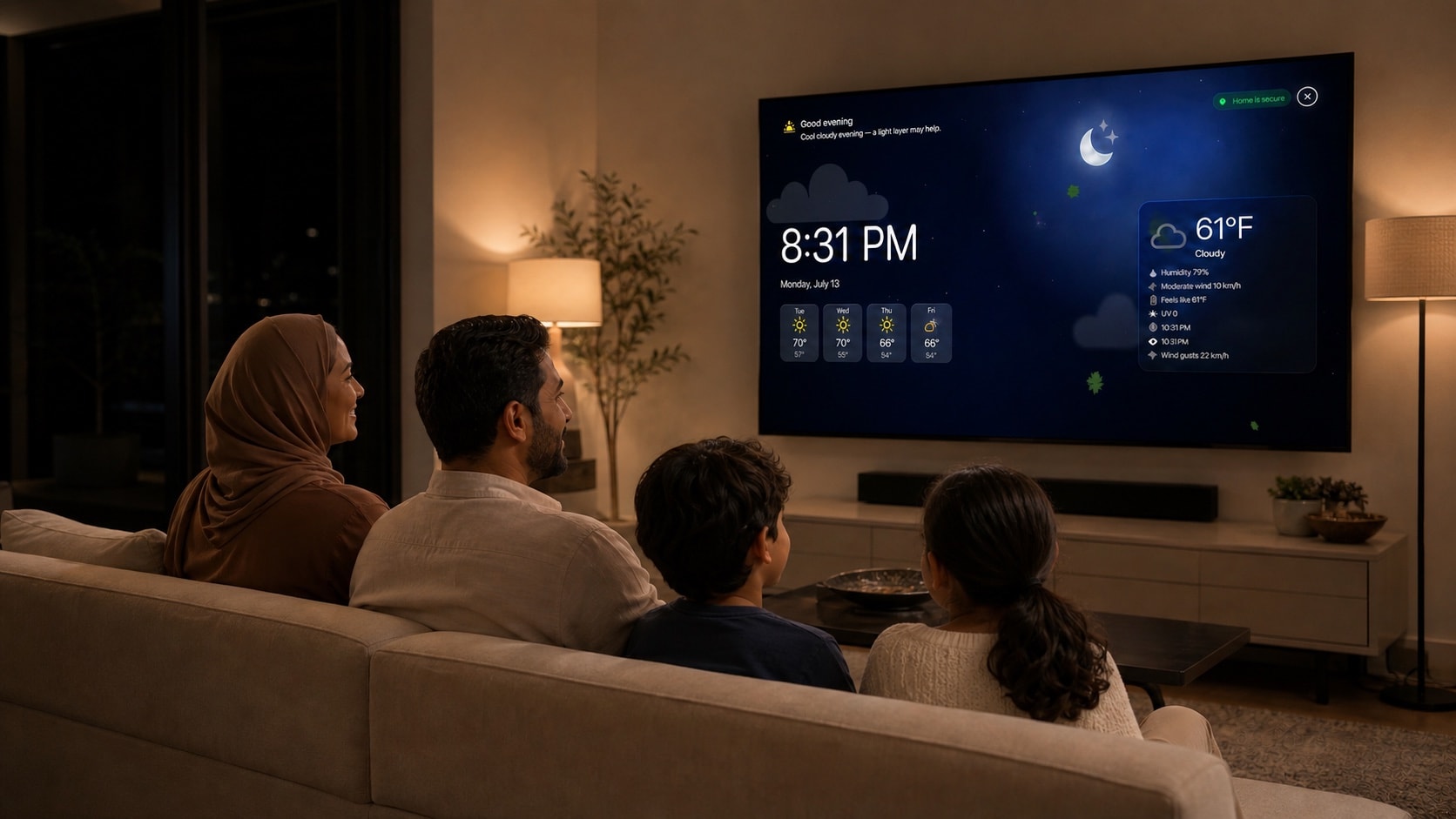
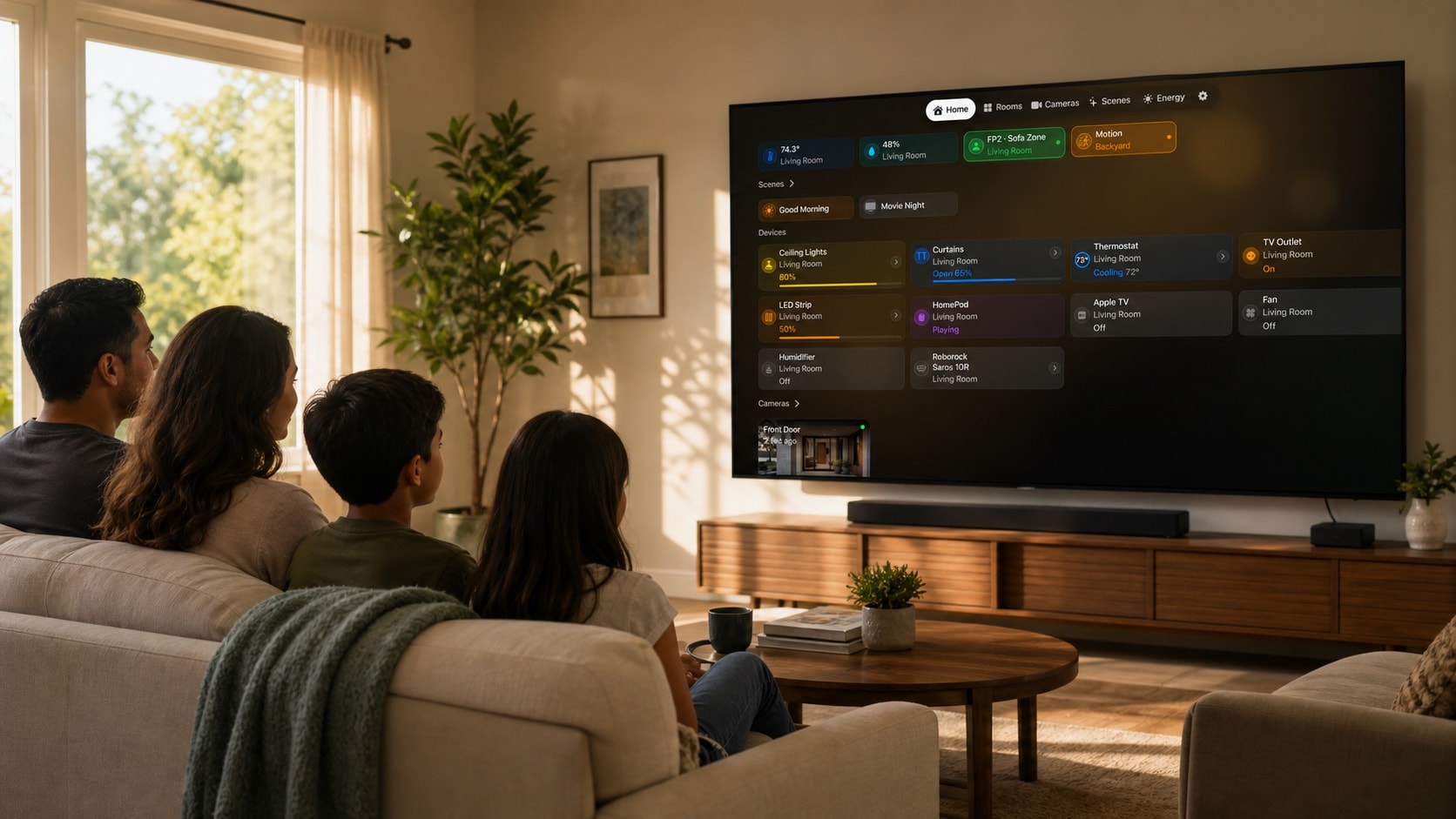
1. Decide what the room needs at a glance
A living-room display is not a control centre for every accessory. Start with the time, the next shared events, current weather, and one or two home states that matter to everyone in the room.
Keep detailed controls on iPad. Apple TV works best as a calm, room-scale overview operated through the standard tvOS focus and remote model.
2. Match the scene to time and weather
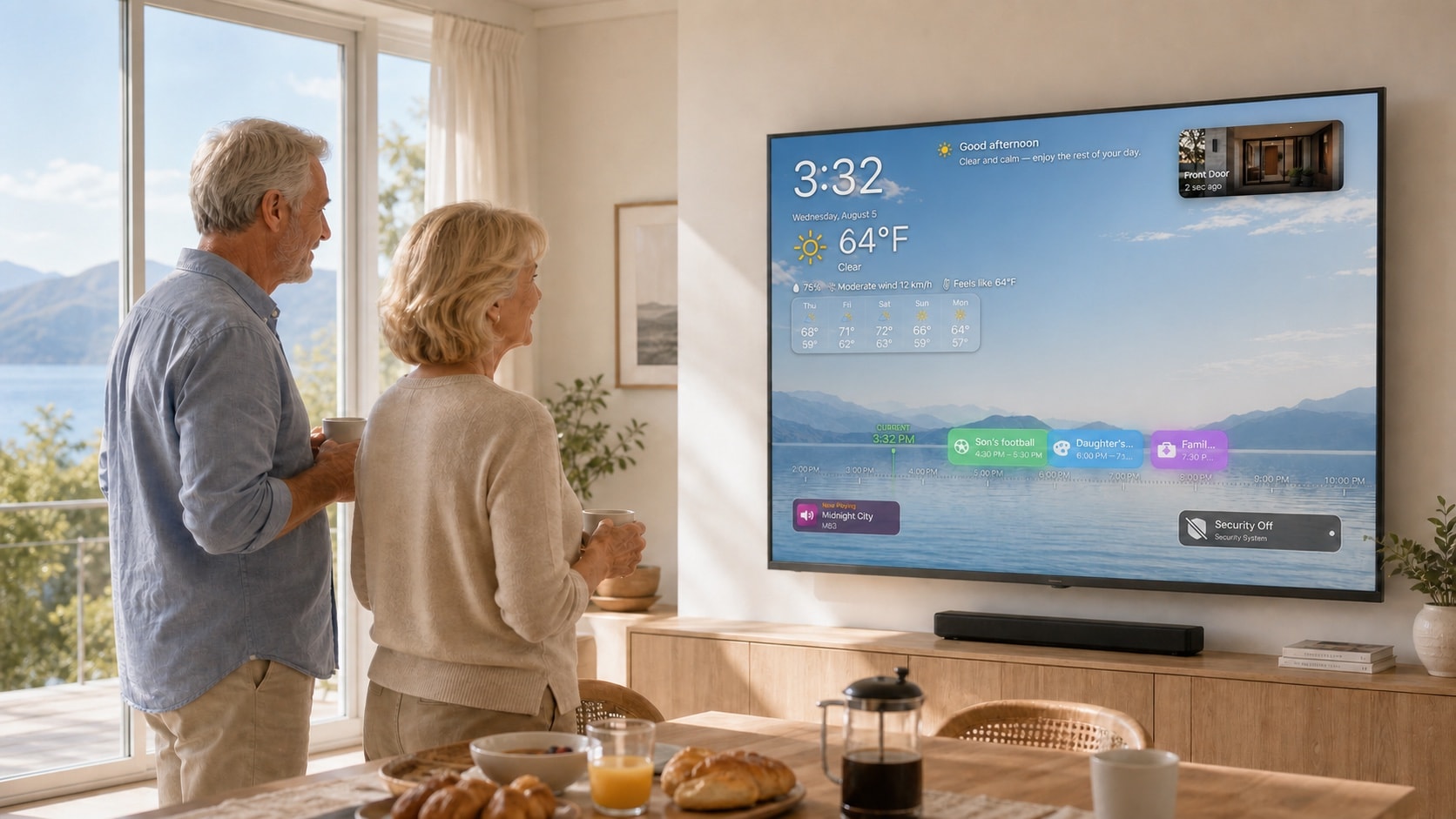
Use a bright daytime treatment when the room is naturally lit. At night, the background should be dark, windows in lifestyle imagery should look dark, and warm lamps can keep the room believable without making the television harsh.
Weather and recommendations must tell the same story. A cloudy, cool forecast should not be paired with advice for hot sun, and English examples should use the household’s expected temperature unit, including Fahrenheit where appropriate.
3. Check readability from the sofa
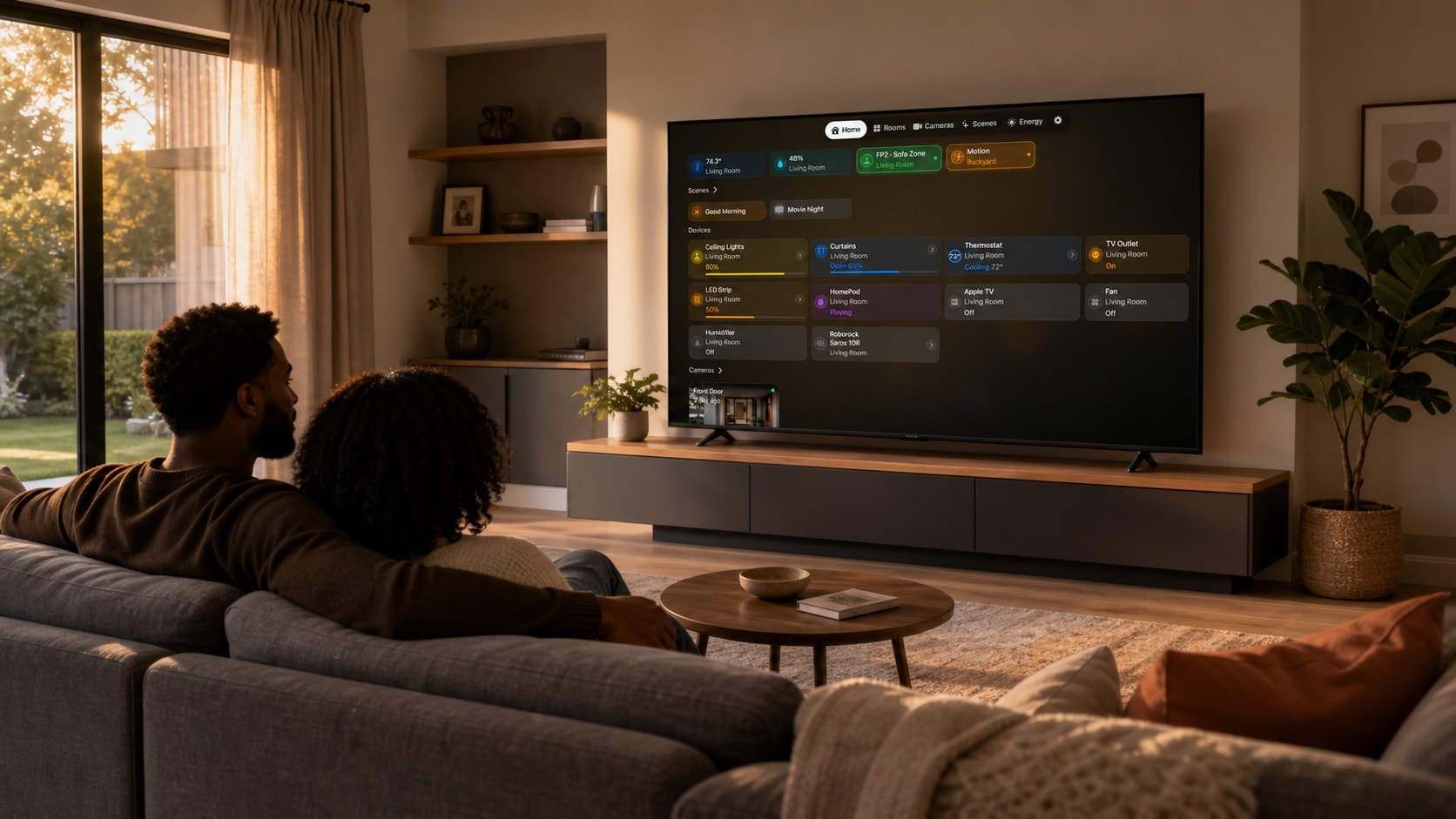
Sit where people normally watch television. The time, weather, security summary, and next event should remain understandable without leaning forward. Remove secondary cards before shrinking important text.
Navigate every selectable item with Siri Remote. Focus should move predictably, Press should open the expected destination, and Back should return without losing context.
4. Keep shared-screen content safe
Do not place private event details, indoor cameras, precise location, or sensitive security controls on a television that guests can see. Prefer summaries and choose only the calendars and cameras suitable for that room.
Review Apple Home permissions separately. A dashboard can present available information, but it should not be used to bypass the roles and access already configured in Apple Home.

5. Pair Ambient with a detailed iPad dashboard
Use Apple TV for the glance and iPad for setup, room navigation, and deliberate control. Test the pair in morning, afternoon, evening, and night conditions before settling on the final layout.
A good result feels quiet when nobody is interacting and immediately useful when someone looks up: the room, forecast, recommendation, and schedule all agree.