
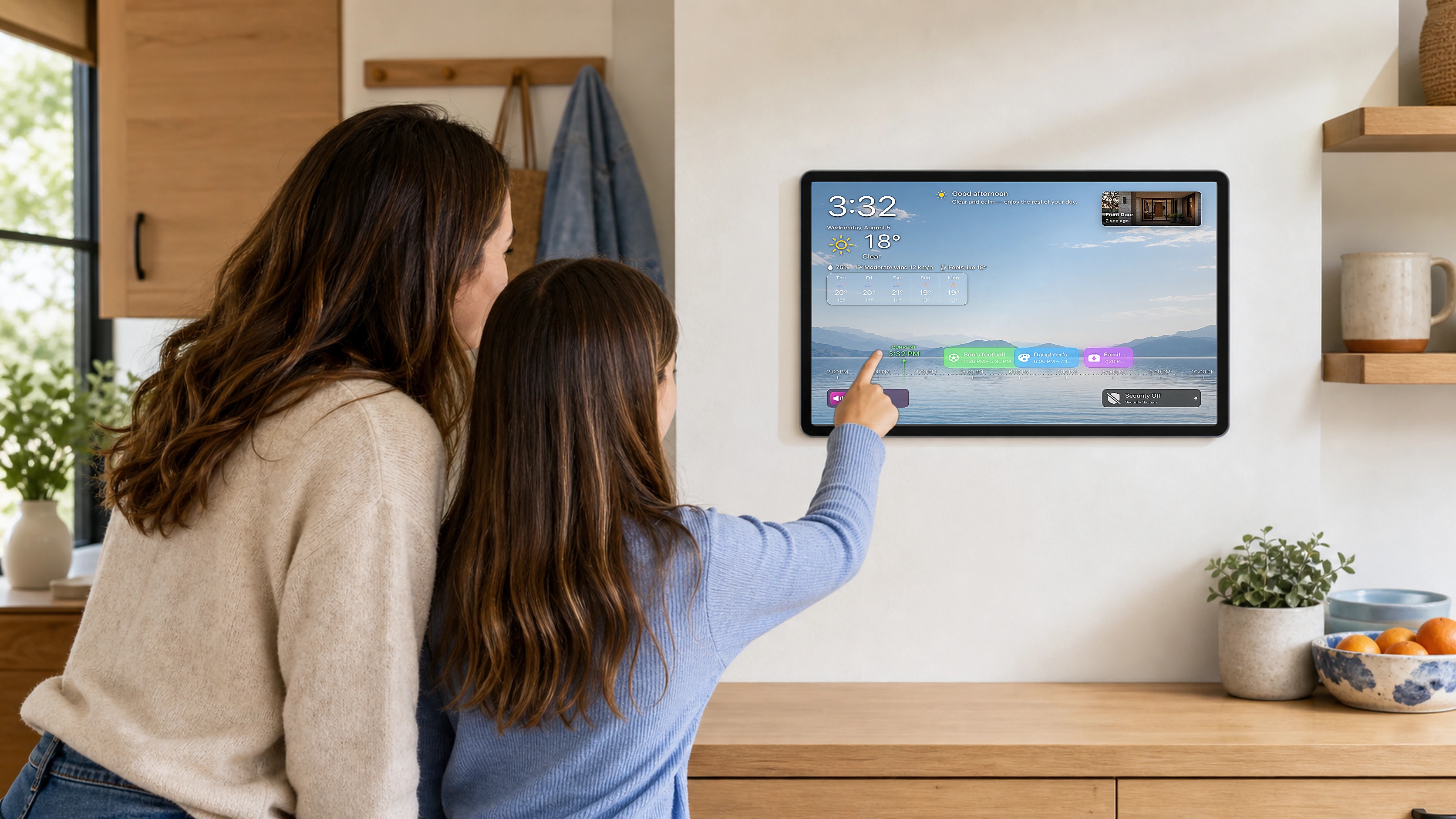
Start with the decisions your household repeats
List the questions people already ask: What is next today? Is anyone at the door? Which lights are still on? What is the weather before school or work? Those repeated questions define the first version of the dashboard.
Keep the first screen limited to information that changes a near-term decision. Detailed configuration, rarely used rooms, and administrative controls can stay one level deeper.
- Today’s shared events
- Weather and the next few hours
- Favorite rooms and scenes
- Relevant cameras and sensors
- A clear security status
Choose one source of truth for each kind of information
A shared screen cannot repair an inconsistent calendar or an unorganized smart home. Decide which calendars represent family commitments, confirm that room and accessory names are understandable, and remove duplicate or obsolete items before arranging the dashboard.
Use Apple Calendar sharing and Apple Home permissions as the foundation. Each family member should keep their own account and receive only the access they need. The dashboard then presents those existing sources instead of creating another place to maintain data.



Design for a glance before designing for touch
The screen should explain the day from across the room. Put time-sensitive information first, use short names, and avoid filling every available space. If someone must stop and study the layout, the hierarchy is too dense.
Touch controls should be reserved for common, low-friction actions such as running a scene or opening a room. Sensitive controls and detailed settings need a more deliberate path, especially on a screen shared by adults, children, and guests.
Pick the screen by location and interaction
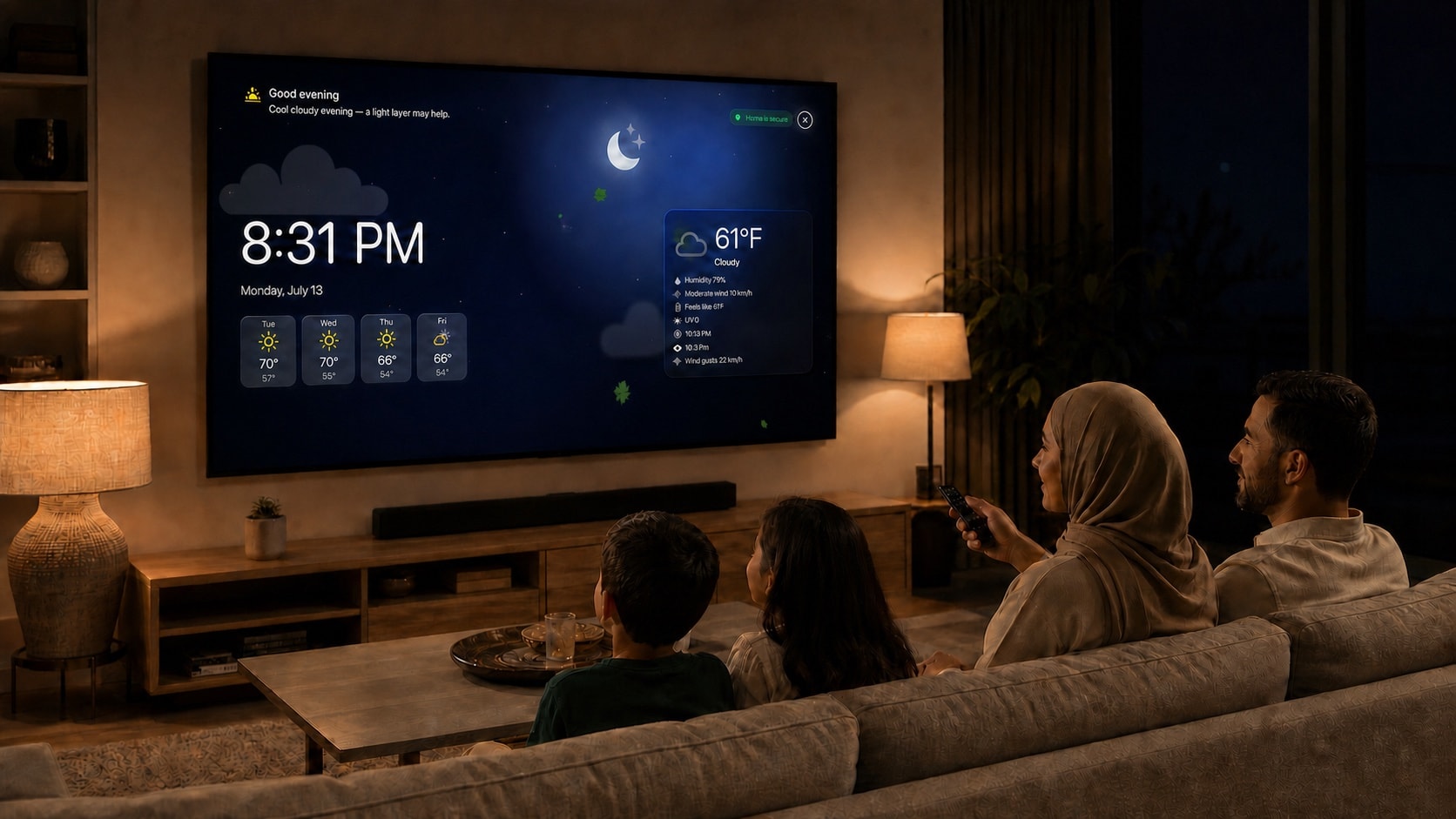
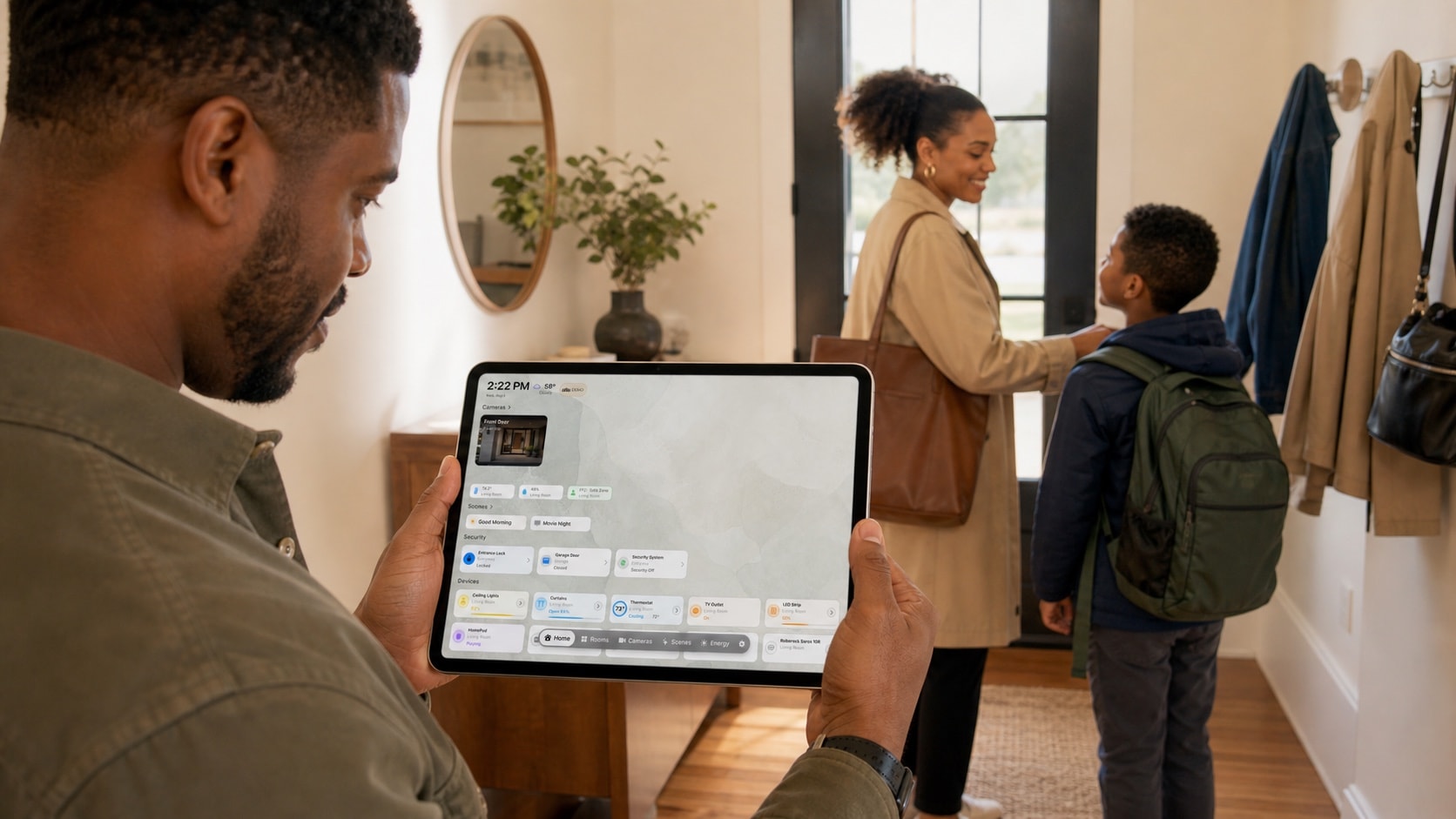
An iPad works well where people can reach the display: a kitchen counter, entryway stand, bedside table, or carefully planned wall mount. Apple TV works where the dashboard is mainly viewed from a distance and operated with a remote.
A household can use both. Configure the information and favorites on iPad, then use Apple TV as a calm room-scale view. Keep platform differences in mind: television controls are intentionally more limited for sensitive accessory categories.
Protect private information on a shared display
Calendar titles, camera views, location, and security states can reveal more than expected. Select only calendars and cameras appropriate for the room, avoid displaying private event details, and review who can physically see the screen.
Prefer products that use the permissions and services already configured on the device. Recheck access whenever the household, room use, or device placement changes.
Test the routine before making the setup permanent
Run the dashboard on a stand for a week before drilling holes or hiding a power cable. Watch which information people use, which controls they miss, and whether glare, distance, or network coverage causes friction.
A good final check is simple: can someone understand the next family event, the home’s general state, and the most common action without opening another app? If yes, the dashboard is doing its job.