
1. Enable guest support on the owner’s iPad
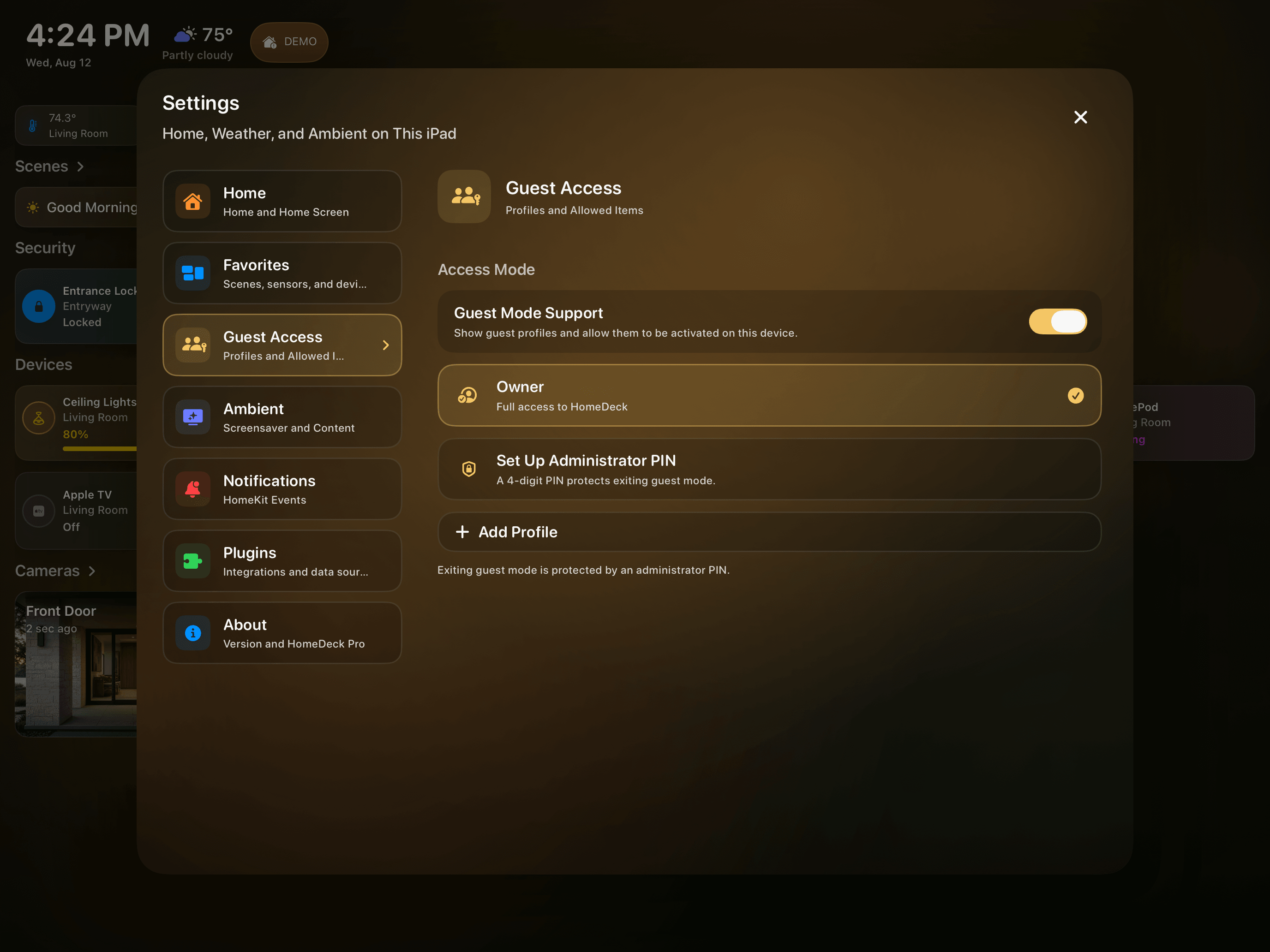
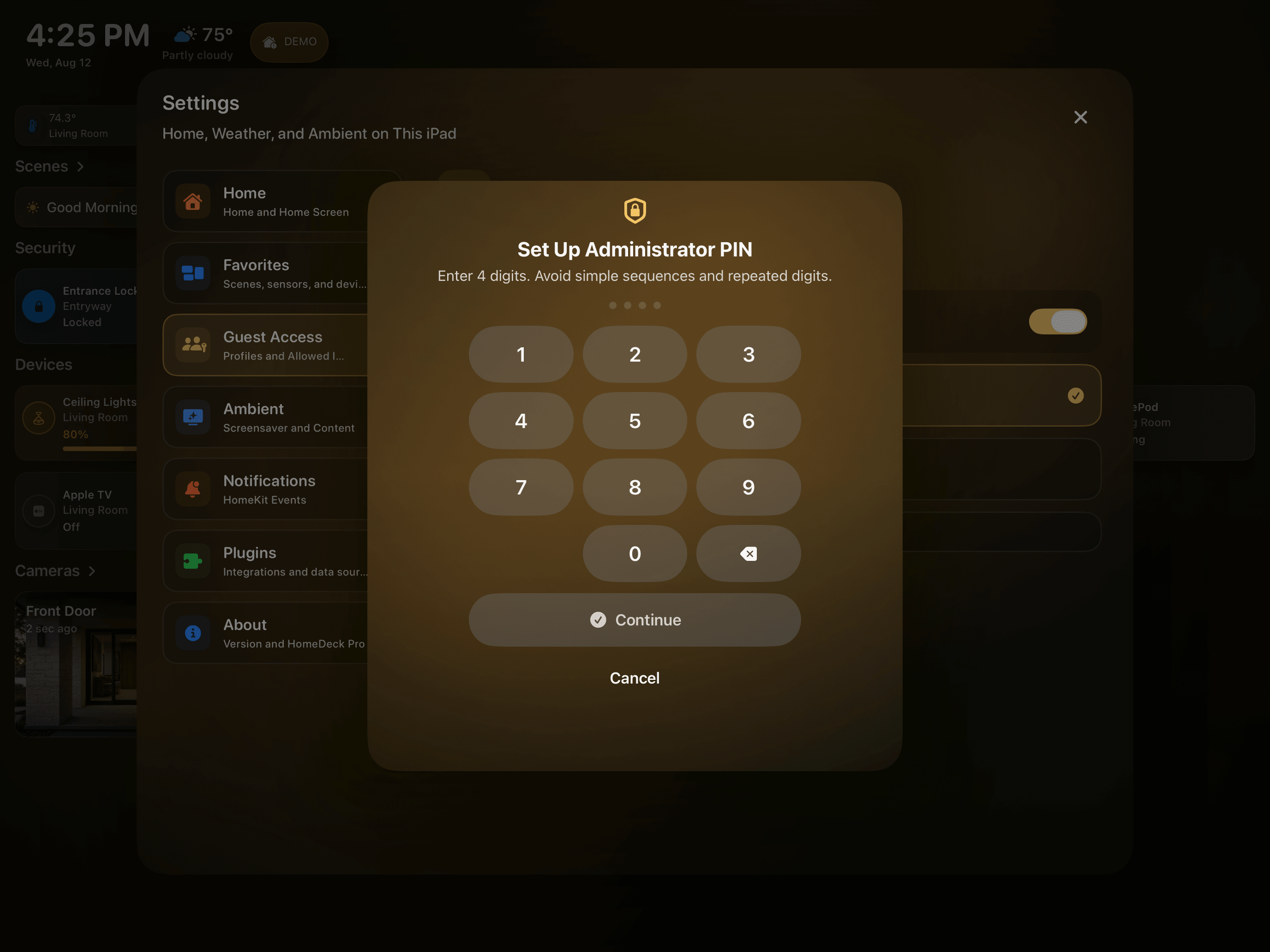
Open Guest Access in HomeDeck settings, turn on Guest Mode Support, and create an administrator PIN. The owner profile remains unrestricted; guest profiles are separate HomeDeck profiles rather than Apple Home roles.
You can disable guest-mode support later without deleting the saved profiles or PIN.
2. Create a profile and choose exactly what it can use
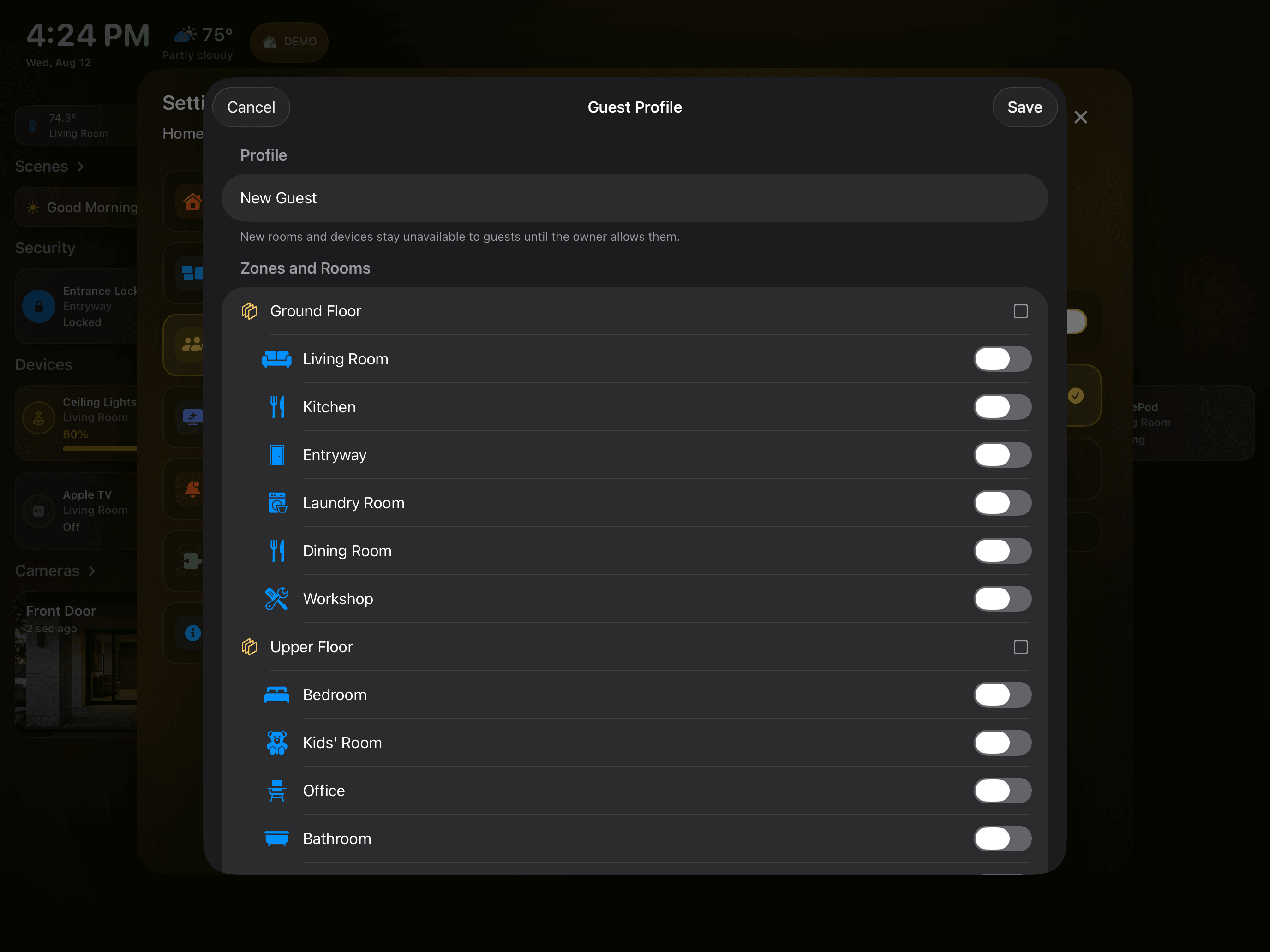
Name the profile, then allow only the required floors, rooms, scenes, devices, cameras, sensors, and Ambient content. Selecting a room also includes the devices inside it, so review the resulting list instead of assuming every item is appropriate.
Settings, editing, forbidden commands, notifications, Siri and App Intents, and old restored routes remain blocked while a guest profile is active.
3. Preview the profile before activating it
Use the built-in preview on iPad to inspect the dashboard as the guest will see it. Check every room, camera, sensor, scene, and Ambient card, then remove anything that reveals more than the visitor needs.
The four-digit administrator PIN is protected against repeated guessing and is required to leave guest mode for owner access.
4. Sync the profile to Apple TV
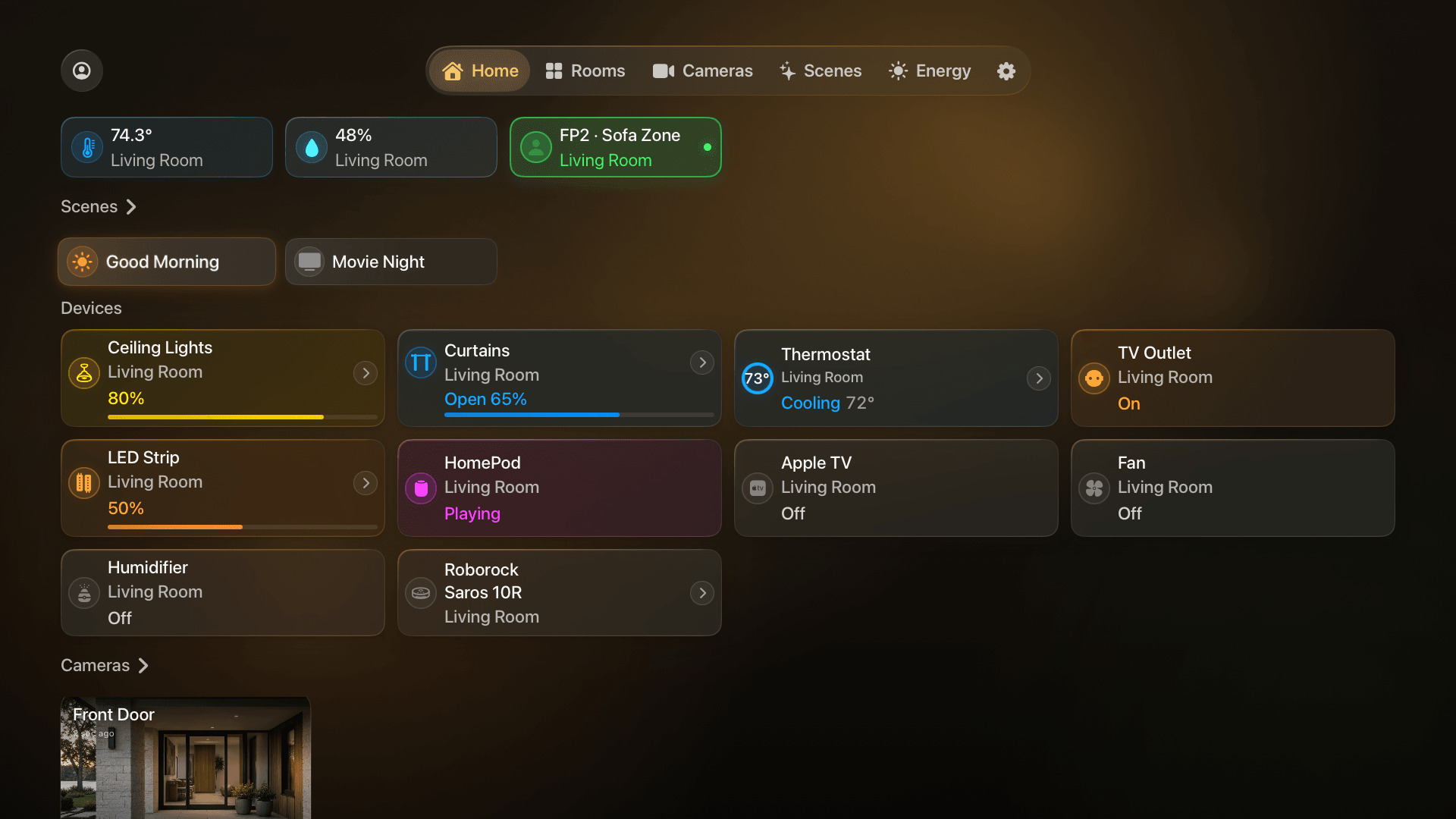
Profiles and their restrictions sync from iPad through iCloud. On Apple TV, choose Owner or a guest profile from the profile control near the top of the menu or above Settings in the sidebar. Exiting guest mode is protected by the owner’s PIN.
The selected profile is remembered separately for each Apple TV user. Review the profile again after installing a new HomeDeck version.